

Table of Contents
Quick Answer
Photoroom is the best all-round AI photo editing tool for Etsy listings. It removes backgrounds, generates on-brand scenes, adds realistic shadows, and resizes images to Etsy’s specs, all from your phone. If you sell handmade goods and want a consistent styled look across your whole shop, Pebblely is built specifically for that job. Canva is the better pick if you also need shop banners, sale graphics, and social posts alongside your listing photos.
If you already work in Photoshop, Adobe Firefly’s Generative Fill and Generative Expand handle detail-level fixes no automated tool can match. Whichever AI photo editor for Etsy you choose, remember the one rule that overrides all of them: Etsy requires your photos to show the real item a buyer will receive, not an invented version of it.
Etsy is a visual marketplace before it’s anything else. A buyer scrolling search results decides whether to click in about half a second, and that decision is made almost entirely on the photo. Getting your product photos right, with or without AI, is the single highest-leverage thing you can do for your shop’s traffic and sales. This guide breaks down the best AI photo editing tools for Etsy listings, what each one actually does well, and the one Etsy rule that matters more than any feature comparison.
Why Etsy Photos Play by Different Rules Than Amazon or Shopify
Most guides to AI product photography are written for Amazon or Shopify sellers, and the advice doesn’t transfer cleanly. Amazon rewards a clean white background and a product that looks identical to every other listing in the category. Etsy rewards something closer to the opposite.
Etsy buyers are shopping for something a mass-market listing can’t offer: a person made this. That changes what a good listing photo looks like, and it changes how you should use AI to edit one. It’s exactly why picking the right AI photo editing tools for Etsy listings matters more than grabbing whatever app ranks first in a store search.
What Etsy Shoppers Actually Look For in Photos
Any AI photo editing tools for Etsy listings you use should serve these buyer expectations, not fight against them:
- Evidence of craftsmanship. The hand-stamped lettering on a pendant, the slight variation in a ceramic glaze, the visible knot in a wooden bowl: these are selling points, not flaws to erase.
- Context, not just a clean cutout. Styled flat lays, lifestyle shots, and natural settings tend to outperform stark white backgrounds on Etsy, which is the opposite of what works on Amazon.
- Honest color and texture. Because Etsy items are often one-of-a-kind or made in small batches, buyers zoom in to check exactly what they’re getting. If the photo and the item don’t match, that’s where refund requests and bad reviews come from.
- A consistent shop identity. Sellers with a recognizable visual style across their whole catalog tend to build more repeat buyers and a stronger sense of brand.
Keep that in mind as you read the comparisons below. The best AI photo editing tool for Etsy listings isn’t the one that makes your product look the most polished. It’s the one that makes your product look the most true to itself, just better lit and better framed.
Etsy’s Official Photo Specs You Need to Hit
Before you touch any editing software, it helps to know the technical target. Every one of the AI photo editing tools for Etsy listings covered below can hit these numbers; the real differences show up in how they get you there. Etsy’s own seller guidance is fairly specific:
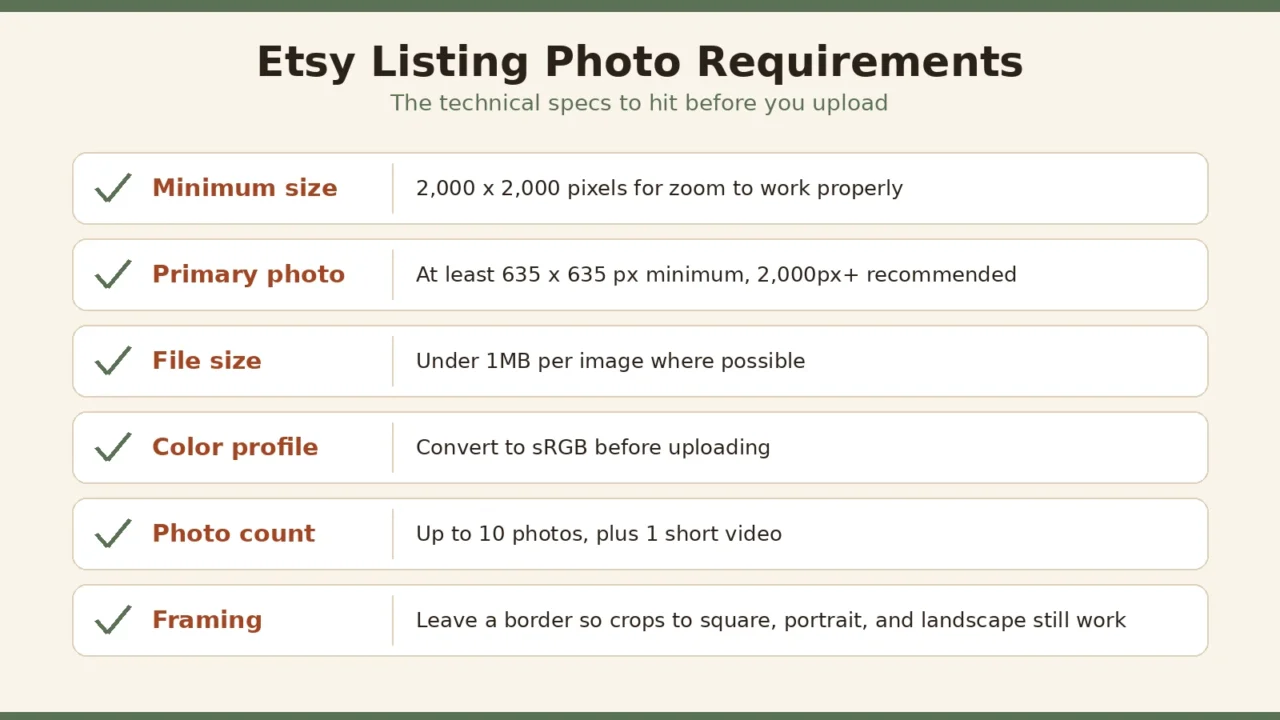
- Listing photos should be at least 2,000 pixels wide and tall so the zoom feature works properly.
- Your first (primary) photo should be at least 635 x 635 pixels at minimum, though 2,000px+ is strongly recommended. A low-resolution primary photo can push your listing lower in search results.
- Keep the file size under 1MB where possible. Larger files can fail to upload on a slow connection and slow down your page.
- Convert images to the sRGB color profile before uploading, or colors may render incorrectly on Etsy.com.
- You can upload up to 10 photos per listing, plus one short video.
- Etsy crops your primary photo into square, portrait, and landscape thumbnails in different places on the site, so leave a generous border around your product rather than shooting tight to the edges.
That last point matters more than most sellers realize. Instead of chasing one “perfect” aspect ratio, the safer move is to frame your hero shot with your product centered and enough breathing room that it survives being cropped several different ways.
What AI Photo Editing Actually Does for an Etsy Shop
“AI photo editing” covers a handful of distinct jobs. Knowing which job you need helps you pick the right tool instead of paying for features you’ll never use.
- Background removal. Cutting the product cleanly out of its original background, including tricky edges like hair, glass, or lace.
- AI background generation. Placing that cutout onto a new scene using an AI background generator, either a plain color, a styled surface, or a full lifestyle setting built from a text prompt or template.
- Shadow and lighting correction. Adding a shadow that matches the new background’s light direction, or fixing uneven, overly warm, or overly dark lighting from the original shot.
- Generative fill and expand. Extending a photo’s canvas, useful for turning a portrait shot into a square without cropping off the product, or removing small distractions like a stray thread or fingerprint.
- Upscaling. Increasing resolution on an older or lower-quality photo so it meets Etsy’s 2,000px recommendation without visible pixelation.
- Batch processing. Applying the same edit style across dozens of photos at once, which matters a lot once your catalog grows past a handful of listings.
Few tools do all six of these well. That’s why the comparison below is organized around what each product photo editor is genuinely best at, rather than a single “best overall” ranking. This is the toolbox that the best AI photo editing tools for Etsy listings actually draw from.
The Best AI Photo Editing Tools for Etsy Listings
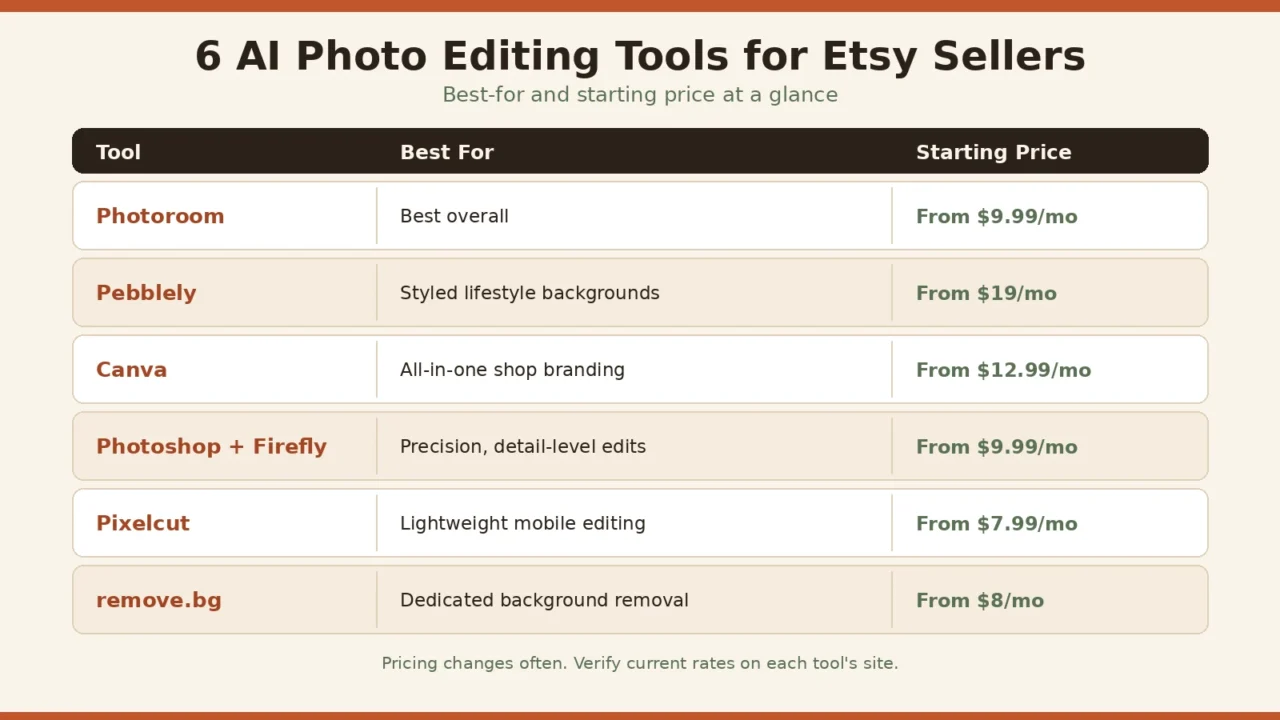
Every tool below was compared on five things that matter specifically for an Etsy shop rather than a generic ecommerce catalog: how well it preserves real texture and detail instead of smoothing a product into a generic catalog look, edge-detection accuracy on hard materials like hair, fur, or glass, whether it exports cleanly at Etsy’s photo specs, batch or workflow speed once you’re past a handful of listings, and price relative to what a solo seller earns per sale.
1. Photoroom — Best Overall AI Photo Editor for Etsy Sellers
Photoroom built its reputation on background removal that holds up on genuinely difficult edges: hair, glassware, and translucent packaging. From there it expanded into a full toolkit around that core strength. It’s available as both a mobile app and a web app, which matters if you’re photographing products on your phone and want to finish the edit without switching devices.
Its AI Backgrounds feature generates a scene around your product from a text prompt or a template, and AI Shadows reads where the light in that new scene is coming from and casts a shadow to match, rather than pasting on a generic drop shadow. Batch Mode applies one style across many photos at once, and it can export directly at Etsy’s recommended dimensions. Among AI photo editing tools for Etsy listings, Photoroom is built most directly around this exact workflow.
Best for: sellers who want one tool that goes from a raw phone photo to an Etsy-ready image in a couple of taps.
Pricing: free with a watermark on exports; paid plans start around $9.99/month to remove the watermark and unlock batch editing and advanced tools. Check Photoroom’s current pricing page, since tiers shift.
Pros:
- Strong edge detection on hard cases like fur, hair, and glass
- Fast mobile-first workflow, good for shooting and editing on location
- Batch Mode saves real time once you have more than a handful of listings
- Export presets sized for Etsy specifically
Cons:
- The free tier’s watermark makes it unusable for a live shop
- Auto-generated scenes can look generic unless you refine the prompt
- Not a substitute for detailed retouching on a single hero image
2. Pebblely — Best for Styled, On-Brand Lifestyle Backgrounds
Pebblely does one thing and does it well: it takes a plain product photo, strips the background, and drops the product into a styled scene, either from a library of 40-plus themes or a custom text prompt, complete with matching reflections and shadows. It leans specifically toward the warm, styled, lifestyle imagery that performs well in handmade and craft categories.
Where it earns its keep is catalog consistency. If you sell candles in twelve scents, or soap in eight variations, Pebblely can give every one of them the same lighting, the same surface, and the same visual mood without you restyling a physical set for each product. Of all the AI photo editing tools for Etsy listings on this list, Pebblely leans hardest into styled scene generation.
Best for: candle, soap, jewelry, ceramics, and home-goods sellers who want a cohesive shelf look across a whole product line without a studio setup.
Pricing: paid plans only on the official site, generally starting around $19/month for a couple hundred images and scaling up from there for higher volume. Pricing for AI image tools changes often, so confirm current rates before subscribing.
Pros:
- Fast way to give an entire catalog one consistent visual identity
- Strong at lifestyle and flat-lay style scenes Etsy buyers respond to
- No design skill required, mostly template and prompt driven
Cons:
- It’s a background generator, not a retoucher. It won’t fix problems with the product photo itself
- Generated scenes can flatten fine texture (weave, grain, knit) under close inspection
- No permanent free tier makes it a bigger first commitment than Photoroom or Canva
3. Canva — Best All-in-One for Listing Photos Plus Shop Branding
Canva’s Magic Studio bundle includes a Background Remover, Magic Eraser for object removal, Magic Media for text-to-image generation, and Magic Resize, which turns one design into every size you need: a listing photo, a shop banner, a social post, without rebuilding it from scratch. On top of the AI tools, Canva’s template library covers everything from Etsy shop banners to sale graphics.
The tradeoff is that Canva’s image generation is general-purpose. It wasn’t built specifically for product photography, so it doesn’t anchor as tightly to your actual product as a dedicated tool like Pebblely or Photoroom. It’s best treated as a layer on top of real product photos rather than a way to generate them from scratch.
Best for: sellers who already live in Canva and want listing photos, banners, and social content covered by one subscription.
Pricing: free plan with a limited number of monthly AI generations; Canva Pro runs roughly $12.99–$15/month with a larger monthly allotment.
Pros:
- One subscription replaces several single-purpose tools
- Magic Resize is genuinely useful for turning a hero photo into every size your shop needs
- Large template library for banners, sale graphics, and social posts
Cons:
- Magic Media isn’t a dedicated product-photography model and can drift from your product’s real proportions or color
- Raw AI image generation quality lags behind specialist tools
- Best used to layer graphics on top of real photos, not to generate product images outright
4. Adobe Photoshop + Firefly — Best for Precision, Detail-Level Edits
Photoshop remains one of the most capable pixel editors available, and Adobe’s Firefly generative AI is now built directly into it. Generative Fill and Generative Expand let you paint over a region with a text prompt and have that area replaced or extended, which is a clean way to turn an off-ratio product photo into a proper square without cropping off part of the item. Generative Remove clears small distractions, a stray thread, a fingerprint on jewelry, a speck of dust, in one stroke.
This is the tool for fixing one hero photo well, not for processing a hundred photos quickly.
Best for: sellers already paying for Creative Cloud, or anyone who needs close control over a single image rather than a batch workflow.
Pricing: Firefly Standard runs around $9.99/month for a set number of premium credits; Photoshop as a single app is roughly $23/month; the full Creative Cloud All Apps plan runs around $60/month. Credit allotments and pricing shift periodically, so check Adobe’s current plans.
Pros:
- Unmatched control for perfecting a single, important image
- Generative Expand is a clean way to extend a crop without losing the product
- Fits into a professional workflow many designers already know
Cons:
- Real learning curve for a solo seller with no design background
- Generative Fill can flatten fine texture on woven fabric, knit stitches, or denim grain when filling a large area
- No built-in Etsy export presets or tools for catalog-wide consistency
5. Pixelcut — Best Lightweight, Budget-Friendly Mobile Option
Pixelcut trades depth for speed. The interface is deliberately simple, aimed at getting you from a raw phone photo to a clean, platform-ready image in a few taps rather than offering a full creative toolkit.
Best for: sellers who want the fastest possible path from a phone photo to a usable listing image, especially on a tight budget.
Pricing: free tier with basic features; paid plans start around $7.99/month for unlimited exports and premium templates.
Pros:
- Clean, uncluttered interface with a short learning curve
- Quick turnaround for simple product shots
- Solid budget option compared to Photoroom or Pebblely
Cons:
- Fewer advanced controls than Photoroom or Photoshop
- Styling and background options are more limited
- Less suited to sellers who want a highly distinctive brand look
6. remove.bg — Best Dedicated Background Remover
remove.bg does a single job and does it very well: automatic background removal with especially strong edge detection on genuinely hard cases like flyaway hair, fur, and glass. It’s available through the website, a desktop app, a Photoshop plugin, and an API, which makes it easy to slot into an existing workflow rather than replace it.
Best for: sellers who already have a lighting and staging setup they like and just need a clean, reliable cutout, or anyone building an automated image pipeline.
Pricing: credit-based, with entry paid tiers generally falling somewhere in the $8–$40/month range depending on volume and resolution needs. Pricing and credit structures for this category shift often, so verify current rates before committing.
Pros:
- Widely used, well-tested accuracy on genuinely difficult edges
- Plugs cleanly into an existing editing workflow via API or Photoshop
- Reliable, consistent results at scale
Cons:
- Does one job only. No scene generation, shadow rendering, or Etsy-specific resizing built in
- You’ll likely still need a second tool to finish the edit
- Costs can climb faster than expected on high-resolution, high-volume use
How to Pick the Right Tool for Your Shop
There’s no single correct answer here. The right AI photo editor for your Etsy listings depends on how big your catalog is and what you’re trying to fix.
- Just starting out, fewer than 10 listings, tight budget: Canva’s free plan or Photoroom’s free tier. Accept the watermark on test shots, upgrade once you have consistent sales.
- Small, growing shop that wants a consistent shelf look: Pebblely for styled backgrounds, or Photoroom Pro for an all-in-one workflow.
- You need listing photos and banners, sale graphics, and social content: Canva Pro.
- You care most about getting one hero photo exactly right: Adobe Photoshop with Firefly.
- Large catalog, batch processing is the priority: Photoroom’s Batch Mode or remove.bg’s API for the background step, paired with a second tool for scene and shadow work.
A sensible approach for most new sellers is to start with one tool that covers background removal and basic scene styling, Photoroom or Pebblely, and only add Canva or Photoshop once you find a specific gap that tool doesn’t fill.
Here’s what that looks like in practice. A seller with 30 listings and six photos per listing is sitting on 180 images. Reshooting and hand-editing that catalog from scratch, even at a brisk 10 minutes per photo, is 30 hours of work. Running the same 180 images through a background-removal-and-batch-style tool like Photoroom typically cuts that down to an afternoon: shoot the raw photos in one session, batch-process the background and shadow in one pass, then spend the saved time on the handful of hero shots that deserve manual attention in Photoshop.
Etsy’s Rules on AI-Edited Photos (Read This Before You Start)
This is the part most “best AI tools for Etsy” articles skip, and it matters more than any feature comparison. Every seller using AI photo editing tools for Etsy listings needs to understand this distinction before uploading anything.
Etsy’s core photo requirement is straightforward: listing photos must be your own original photos of the actual item a buyer will receive, not renderings, not stock photos, and not a scene that doesn’t reflect the real product. There are narrow, specific exceptions, mainly around personalized items and certain production-partner arrangements, but the default rule applies to almost every handmade or vintage listing.
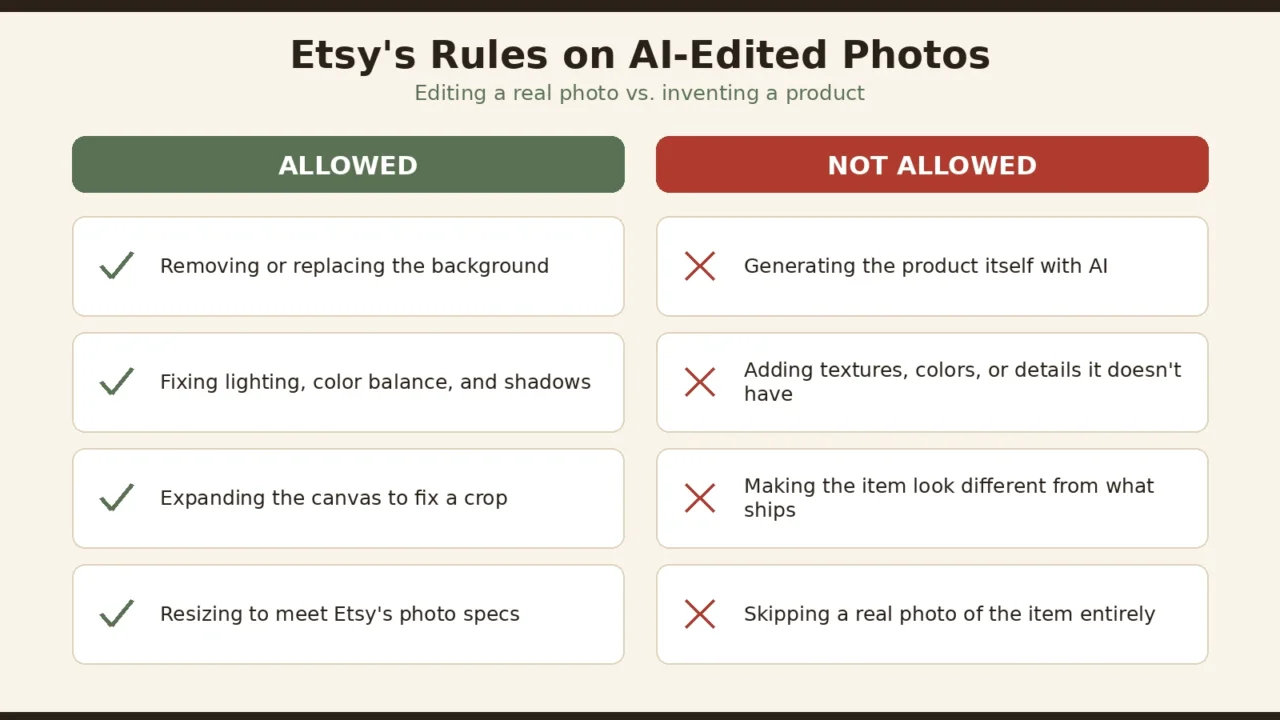
That doesn’t mean AI editing is off-limits. Etsy’s Creativity Standards, the policy that governs what counts as an acceptable item and how it must be represented, draws a meaningful line between two different things:
- Editing a real photo of a real product. Removing the background, correcting lighting, adding a shadow, extending the canvas to fit a square crop. This is a presentation choice, and it’s generally fine, as long as the edit doesn’t add or remove real features the item doesn’t actually have.
- Generating the product itself with AI, or using AI to fabricate a texture, pattern, color, or finish that doesn’t exist on the real item. This crosses into misrepresentation, which Etsy treats seriously because its whole value proposition rests on buyers trusting that what they see is what they’ll get.
Separately, if the item itself, not just its photo, was created using AI (say, an AI-generated print or digital design), Etsy requires you to disclose that in the listing description and select “Designed by a seller” rather than “Made by a seller” in the listing’s production details. That’s a different situation from editing a photo of a handmade physical item, but the two get confused often enough that it’s worth being clear on the distinction.
The practical rule of thumb: use AI to clean up the background, the lighting, and the framing. Don’t use it to invent anything the product doesn’t actually have. Etsy has been tightening enforcement around AI content through 2025 and 2026, and the specifics of the policy do shift, so it’s worth rereading the current Creativity Standards and Seller Handbook every so often rather than relying on last year’s guidance.
A Simple Workflow: Editing Etsy Photos With AI, Step by Step
This workflow applies no matter which of the AI photo editing tools for Etsy listings above you settle on.
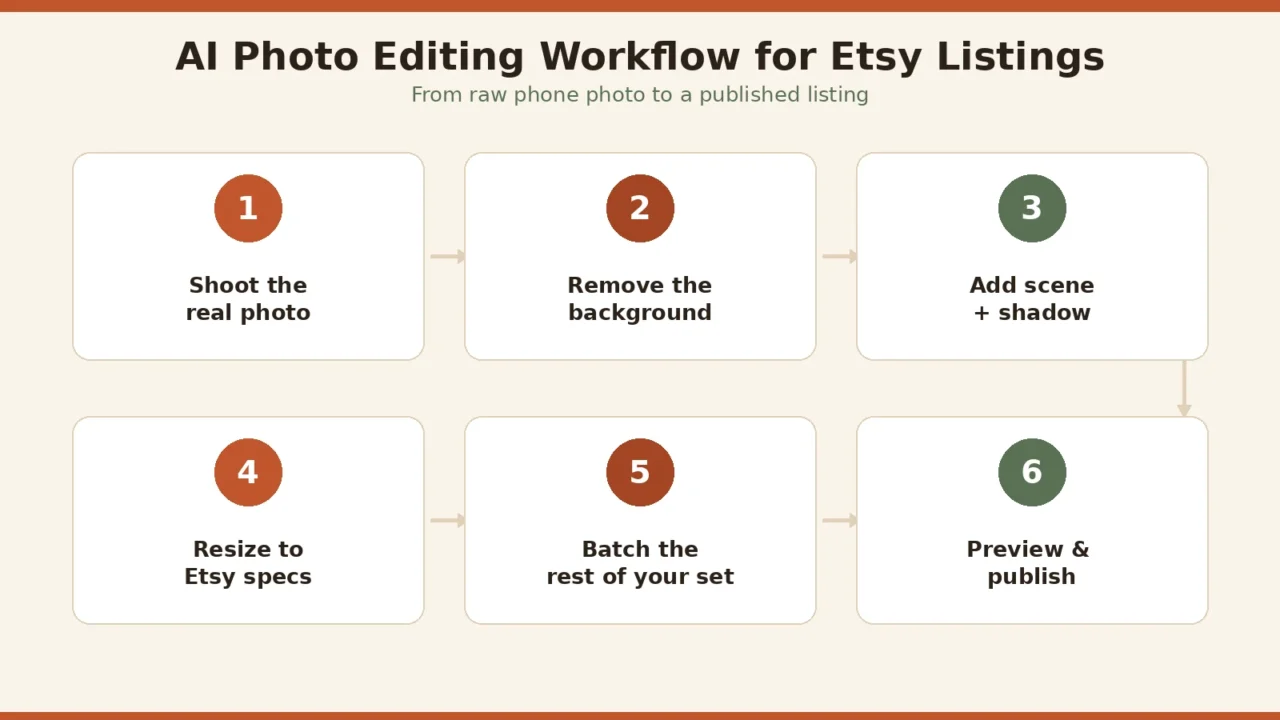
- Shoot the real photo first. Good natural light, a window during the day rather than mixed with a yellow indoor bulb, on a clean, uncluttered surface. AI editing improves a decent photo; it doesn’t rescue a bad one.
- Pick your hero shot and frame it with margin. Center the product with enough border around it to survive being cropped into square, portrait, and landscape thumbnails.
- Remove the background. Use Photoroom, remove.bg, or Canva’s Background Remover, and check the edges closely on materials like lace, fur, or glass.
- Add a background that fits your brand and stays true to the product’s real color. A styled scene, a soft solid color, or a lifestyle setting: just avoid anything that makes the item look different than it is.
- Add a matching shadow so the product doesn’t look like it’s floating.
- Resize and export at Etsy’s specs: at least 2,000px on the shortest side, under 1MB where possible, sRGB color profile.
- Batch the rest of your angle and detail shots in the same style so your gallery feels like one cohesive set, not five different photoshoots.
- Preview at thumbnail size before publishing. Zoom your browser out or shrink the image to roughly 150–200px and check that the product is still instantly recognizable.
- Disclose AI use if the situation calls for it, and double-check your “Made by” vs. “Designed by” selection matches how the item was actually created.
Common Mistakes Etsy Sellers Make With AI Photo Editing
Most of these mistakes have nothing to do with which AI photo editing tools for Etsy listings you picked, and everything to do with how they’re used.
- Editing away the exact details buyers are paying for. Smoothing out the natural variation in a hand-glazed mug or a raw-edge cutting board erodes the handmade trust that got the buyer to click in the first place.
- Skipping the real photo entirely and trying to generate a scene from scratch for a physical item. This is exactly the kind of misrepresentation Etsy’s photo policy exists to prevent.
- Publishing without checking the thumbnail crop, so the product ends up partially cut off in search results.
- Ignoring file size and resolution specs, which leads to slow uploads or images that look soft after Etsy’s own compression.
- Inconsistent styling across the shop: one white-background photo, one heavily styled lifestyle shot, no shared visual thread. It makes a catalog feel scattered instead of like a brand.
- Forgetting AI disclosure when the situation requires it, which risks a listing takedown that’s far more costly than the ten seconds it takes to add a disclosure line.
FAQs
What’s the best free AI photo editing tool for Etsy listings?
Canva’s free plan and Photoroom’s free tier are the strongest starting points. Both include background removal at no cost; Photoroom’s free exports carry a watermark, so budget for a paid plan once your shop arts generating sales.
Do I have to disclose AI-edited photos on Etsy?
It depends on what the AI did. Cleaning up a real photo of a real item, background removal, lighting correction, resizing, is generally treated as standard photo editing. If AI was used to create the item itself, or to add features the item doesn’t have, disclosure and the correct “Designed by a seller” categorization are required. When in doubt, disclose. It costs little and protects your shop.
Can I use AI to generate a full product photo instead of taking a real one?
No, not for a physical handmade or vintage item. Etsy requires listing photos to show the actual product a buyer will receive, with only narrow exceptions for personalized items and certain production-partner scenarios.
What size should my Etsy photos be after editing?
At least 2,000 pixels on the shortest side, ideally under 1MB in file size, exported in the sRGB color profile. Keep your subject centered with margin around it so it survives being cropped for square, portrait, and landscape thumbnails.
Will AI photo editing get my Etsy listing flagged or suspended?
Only if the editing misrepresents the product: adding textures, colors, or details the item doesn’t actually have, or generating the product itself rather than editing a real photo. Background removal, lighting fixes, and shadow generation on a genuine product photo are standard practice and not a policy risk on their own.
Does better photo editing actually improve my Etsy search ranking?
Indirectly, yes. Etsy’s search ranking rewards listings with a strong click-through rate and purchase rate once they appear in results, and a sharper, better-lit, well-cropped hero photo is one of the more reliable ways to earn both. Better photo editing is one input into Etsy SEO, alongside titles, tags, and pricing; it isn’t a ranking factor on its own, but it feeds the signals that are.
How many photos should I edit per listing?
Aim to fill most or all of Etsy’s 10 photo slots: a hero shot, a second angle, a detail close-up or two, a scale reference, and a lifestyle or in-use shot if it fits the product. Sparse listings with only one or two photos are consistently harder for buyers to trust.
Conclusion
AI photo editing tools for Etsy listings have closed the gap between a phone photo and a professional-looking listing, and for a solo seller without a studio budget, that gap used to be the whole battle. Photoroom, Pebblely, Canva, Photoshop, Pixelcut, and remove.bg each solve a slightly different piece of the problem, and most sellers end up settling on one primary tool plus an occasional second one for specific fixes.
But the tool is only half the equation. The other half is restraint: using AI to present your product clearly and consistently, not to make it look like something it isn’t. On a marketplace built around trust in a real person making a real thing, that restraint is exactly what keeps your photos, and your shop, working in your favor.
If you’re looking for a full package of AI tools for Etsy sellers, then you can follow our complete Best AI tools for Etsy sellers pillar guide.